Pro Tools is still where a lot of records get tracked and mixed, and saturation is one of the tools that gets used on almost all of them. But not every saturation plugin will even show up in Pro Tools, and the ones that do can behave differently depending on where you insert them.
This guide covers what to look for in a saturation plugin for Pro Tools, how to set it up on a track, a bus and the mix bus, and which RSL plugins run in Pro Tools today (along with the ones that don’t).
What to look for in a saturation plugin for Pro Tools
AAX support comes first
Pro Tools only loads AAX plugins. A plugin that exists as VST3 or Audio Unit won’t appear in Pro Tools, however good it is. Before you buy anything, check the format list for AAX, and check it for your operating system. Some developers ship AAX on macOS but not on Windows, or the reverse.
Latency and oversampling
Saturation creates new harmonics, and some of them land above the Nyquist frequency (half your session sample rate). Those fold back down as aliasing, which sounds grainy and brittle rather than warm. Oversampling runs the processing at a higher internal rate to keep that under control.
The tradeoff is CPU and, depending on the design, a little latency. Look for a plugin that lets you choose the oversampling amount, so you can keep it light while tracking or mixing a big session and raise it on buses, the mix bus and final bounces. Make sure Delay Compensation is enabled in Pro Tools (in the Options menu) so any latency the plugin reports is compensated.
Gain staging and output control
A saturator reacts to how hard you hit it. You want clear input and output metering, a drive control that behaves predictably, and ideally a ceiling so the plugin can’t push peaks past what the next stage expects.
A way to compare fairly
Saturation lowers crest factor, so the processed signal comes out louder at the same peak level. Louder almost always wins an A/B for the wrong reason. Gain matching, auto gain or at least an easy output trim makes honest decisions much easier.
Getting the plugin into Pro Tools
On macOS, AAX plugins install to /Library/Application Support/Avid/Audio/Plug-Ins. Most installers let you choose which formats to install. If a plugin doesn’t appear:
- Rerun the installer and make sure the AAX (Pro Tools) option is selected.
- Quit and restart Pro Tools. It scans for new plugins at launch.
- Confirm you’re on a plugin version that includes AAX.
Inserting saturation on a track
- Open the Mix or Edit window and click an empty insert slot on the track.
- Choose the saturation plugin from the plug-in menu. On stereo tracks pick the stereo (multichannel) version.
- Gain stage first. Use Clip Gain or the plugin’s input so peaks sit well below full scale. As a starting point, aim for peaks around -18 to -12 dBFS going in.
- Bring the drive up until you hear the sound change, then back off slightly.
- Trim the output so the track plays back at the same perceived level as when bypassed.
Track inserts in Pro Tools are pre-fader, so moving the track fader doesn’t change how hard the saturator is driven. That’s usually what you want: set the tone once, then balance with the fader.
Saturation on a bus
Drum, music and vocal buses are where saturation often does its best work, because it adds density and glue to a group of sources at once.
- Create a stereo Aux Input track (Track > New).
- Set its input to an internal bus, and route the tracks you want to group to that same bus.
- Insert the saturator on the Aux Input.
- If you want parallel saturation, you have two options: use the plugin’s wet or mix control, or send the tracks to a second aux with the saturator 100% wet and blend it with the aux fader. The in-plugin wet control is simpler and keeps everything on one track.
On drum buses, parallel usually wins. The dry transients stay punchy while the saturated signal fills in the body and room.
Saturation on the mix bus: skip the Master Fader inserts
This is the Pro Tools detail that catches people out. Inserts on a Master Fader track are post-fader. If you automate a fade-out on the Master Fader, the level going into your saturator drops as the fade happens, so the character changes during the fade. Saturation depends on level, so you can hear it.
A more reliable setup:
- Create a stereo Aux Input track and name it Mix Bus.
- Set its input to a new internal bus and its output to your main outputs.
- Route every track, aux and effect return to that bus.
- Insert your saturator (and any bus compression or limiting) on the Mix Bus aux.
- Do fades on the aux fader or, better, after the processing chain, so the saturator always sees a consistent level.
On the mix bus, start with low drive, raise oversampling, and set a ceiling if the plugin offers one.
Level-matched A/B in Pro Tools
Bypassing a saturator and deciding it sounds better is the easiest trap in mixing. Do this instead:
- Match the processed and bypassed versions on integrated loudness (LUFS), not peak level. Peaks come down relative to the body of the sound when you saturate, so peak matching still leaves the processed version louder.
- Use the plugin’s gain match or auto gain if it has one, or trim the output by ear against a loudness meter.
- Loop a section long enough to judge (a full chorus rather than two bars), and switch without looking at the screen if you can.
RSL level matches its own demos on integrated loudness for exactly this reason. If the saturation still sounds better at equal loudness, it’s genuinely helping.
Common Pro Tools saturation mistakes
- Hitting the saturator too hot. Pro Tools sessions built from hot recordings leave no headroom for drive. Trim with Clip Gain first.
- Saturating on the Master Fader, then fading out. Use an aux mix bus instead.
- Stacking without checking the total. A little on every track, then more on the bus and mix bus, adds up fast.
- Leaving oversampling maxed on every instance. Save the high settings for buses and the mix bus.
- Letting the low end drive the whole circuit. On full mixes and drum buses, kick and bass hit a full-band saturator hardest. A dual-core (multiband) saturator lets you drive the lows and highs separately. Our guide to dual-core saturation on buses, stems and masters explains how.
RSL options for Pro Tools users
Straight answer first, so nobody downloads the wrong thing:
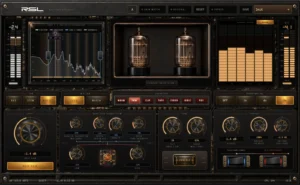
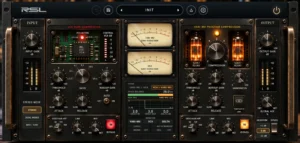
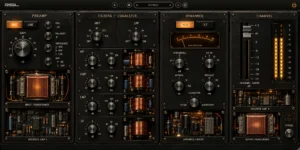
- RSL Dual Core Saturator runs in Pro Tools on macOS via AAX, starting with version 1.9.0.
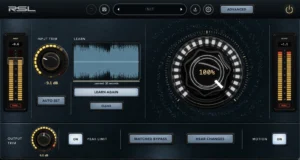
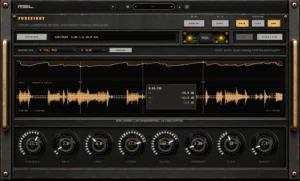
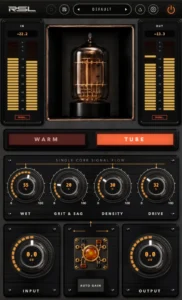
- RSL One (our free saturator) runs in Pro Tools on macOS via AAX. RSL Foresight doesn’t have an AAX build, so it won’t load in Pro Tools.
- There’s no AAX on Windows yet. On Windows, the Dual Core Saturator is available as VST3 and Standalone, which means it won’t load in Pro Tools on Windows today.
RSL Dual Core Saturator in Pro Tools
RSL was founded by producer and engineer Mevin Riviere (2x RIAA Gold, 15+ years making records), and the Dual Core Saturator is built for the bus, stem and mix bus work described above.
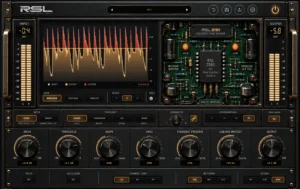
- Two independently driven saturation cores split at a crossover you set, so the low end can stay composed while the top is pushed hard, or the reverse. Core 2 is a residual saturator: it isolates a band, processes it, subtracts the original band and blends only the difference back with the dry signal. The dual-core saturation explainer goes into detail.
- Seven characters: Warm, Tube, Clip, Tape, Ferro, Ionic and VO2.
- Controls: Wet for parallel saturation right on the insert, Depth (grit and sag), Density, Drive (tube intensity), Tilt (body/air) and Focus (mid/side).
- Extras: Blue and Red transformers, console treatment, Voltage L/R drift and a true-peak ceiling for mix bus use.
- Workflow: Bus, Stem and Master job modes, Push and Match mix laws, and oversampling off, 2x, 4x or 8x.
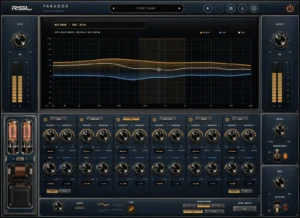
- Metering: spectrum, harmonic content and RTA, with gain match and residual monitoring for honest comparisons.
Installing for Pro Tools: run the macOS installer with AAX (Pro Tools) selected, then restart Pro Tools. It’s a Universal 2 build, so it runs natively on both Intel and Apple Silicon Macs. If it still doesn’t show up, RSL support can help.
Pricing: $69 founders’ price until 30 November 2026, then $99. One-time payment, activated through RSL Hub on up to 4 computers, and there’s a 14-day refund window.
Try it in your own session: the free 14-day trial is the full plugin on up to 4 computers, no card required (a free account is needed). Build the aux mix bus above, drop it in, level match, and decide with your ears.
If you also work outside Pro Tools, on macOS in an AU or VST3 host or on Windows in a VST3 host, the free RSL One gives you the same Warm and Tube circuit on a single core. You can see everything we make on the plugins page.
FAQ
Why doesn’t my saturation plugin show up in Pro Tools?
Pro Tools only loads AAX. Check that the plugin has an AAX build for your operating system, rerun the installer with the AAX option selected, and restart Pro Tools. For the RSL Dual Core Saturator, you need macOS and version 1.9.0 or later.
Should I put saturation on the Master Fader in Pro Tools?
Usually not. Master Fader inserts are post-fader, so fades change how hard the saturator is driven. Route everything to a stereo Aux Input mix bus and insert your saturation there.
Can I use the RSL Dual Core Saturator in Pro Tools on Windows?
Not yet. There’s no AAX build for Windows at the moment. On Windows, the plugin runs as VST3 and Standalone, so you can trial it in a VST3 host, but it won’t load inside Pro Tools.